-01.png)


1. Why Tracking Comes Before Campaigns
For Google Ads to make smart decisions and optimise your campaigns to find the right buyers, it needs:
- The right event
A real purchase, not a random pageview or button click - The right value
Real revenue, correct currency, no random fixed amount - The right frequency
One conversion per order, not three because someone reloaded the thank you page
If any of this is wrong, Google will:
- Over value the wrong campaigns and audiences
- Under value the campaigns that are actually profitable
- Optimise toward bad signals that do not match your real goals
So we treat tracking as its own mini project:
- Fix the source of truth (your online store or CMS)
- Make GA4 understand that data
- Send the right conversions into Google Ads
- Sanity check that all three line up
Only after that do you start scaling paid traffic.
2. The Tracking Stack: How The Pieces Fit Together
Let us zoom out for a second and look at the pieces.
For a typical ecommerce brand, your tracking stack usually looks like this.
Your CMS or Online Store
Examples:
- Shopify
- WooCommerce
- Magento
- Custom store
Job:
- Hosts your product pages and checkout
- Records orders, revenue and customers
This is your source of truth. If this is wrong, everything else will be off.
GA4 (Google Analytics 4)
Job:
- Tracks what people do on your site
- Receives events like view_item, add_to_cart, begin_checkout, purchase
- Shows you the full journey, not just the last click
Think of GA4 as the analytics brain that sits between your store and your ads.
Google Ads
Job:
- Sends traffic to your site
- Receives conversion signals from GA4 or directly from your site
- Uses those conversions to optimise bids, search terms and audiences
This is where the money goes out and, if you do this right, comes back.
Optional But Helpful Extras
- Google Tag Manager (GTM) to manage tags without touching the site code every time
- Enhanced conversions or server side tracking for more robust data under privacy restrictions
The basic flow is:
- User clicks an ad in Google Ads
- They land on your site
- GA4 and tags track what they do
- When they purchase, your store fires a purchase event
- That purchase is sent to GA4 and Google Ads
- Google Ads learns "this click and this user were valuable" and adjusts bids and targeting accordingly
If any part of that chain breaks, your data stops being trustworthy.
3. Step 1: Fix Your Store Tracking First
Before you touch GA4 settings or Google Ads conversions, fix the source.
If your store is sending messy data, GA4 and Google Ads can only pass that mess along.
3.1. Check That Basic Ecommerce Tracking Actually Works
Most modern ecommerce platforms have native or plugin based integrations for GA4 and Google Ads.
You usually do not need to build custom tracking from scratch. You just need to test properly.
At minimum, you want these actions tracked:
- Page views
- Product views (
view_item) - Add to cart (
add_to_cart) - Begin checkout (
begin_checkout) - Purchase (
purchase) with value and currency
Do a simple test:
- Open your site in an incognito window
- Add a test product to cart
- Go through the full checkout flow
- Place a real or very low value test order
Then check:
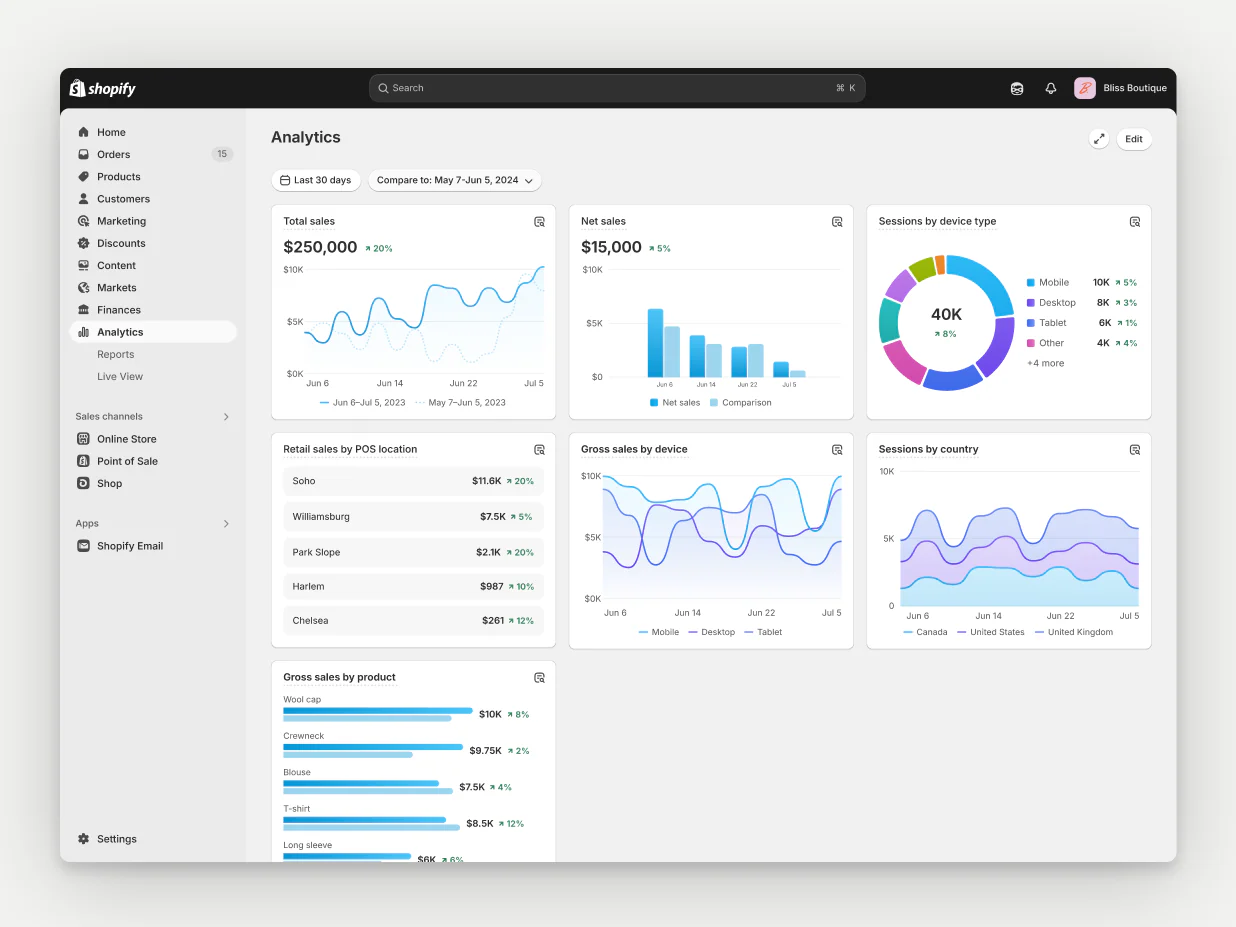
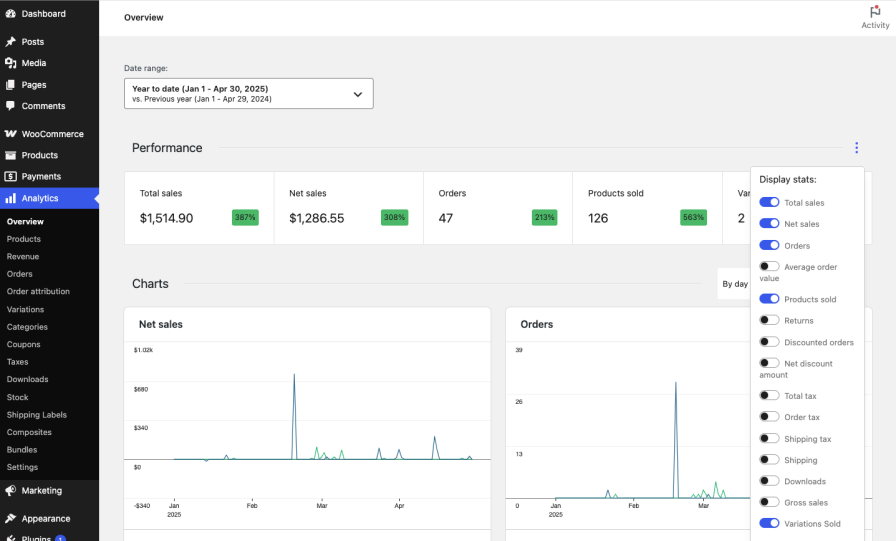
- In your store or CMS
- Is the order recorded correctly
- Is the revenue correct and in the right currency
- Is the order recorded correctly
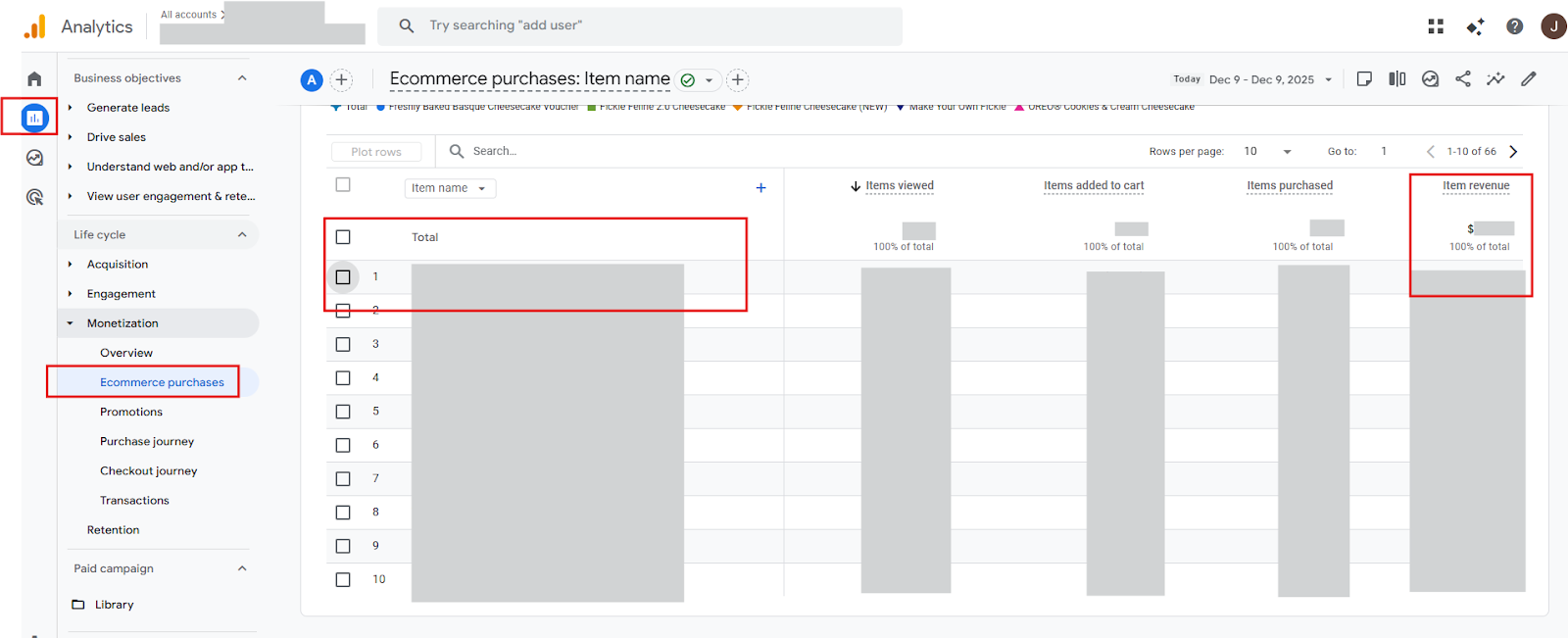
- In GA4
- Can you find the matching purchase event
- Is the value correct
- Is the currency correct
- Are the items attached with correct IDs or SKUs
- Can you find the matching purchase event
If this does not check out, do not move on yet.
3.2 Common store tracking mistakes and how to fix them
Here are the issues I see most often and what to actually do about them.
Problem 1: Duplicate purchase events
- How to spot it
- In GA4, you see more purchases than actual orders in your store
- You see multiple purchase events with the same transaction ID
- In GA4, you see more purchases than actual orders in your store
- What to do
- Make sure the purchase event only fires when the order is first completed, not every time the thank you page loads
- For most ecommerce setups, this is a setting inside your GA4 or tag app
- If you are using a developer or GTM, ask them to fire the purchase event only on first load and to pass a unique transaction ID so duplicates are ignored
- Make sure the purchase event only fires when the order is first completed, not every time the thank you page loads
Problem 2: Wrong or missing values
- How to spot it
- Purchase events show value 0 or a random fixed number for every order
- Revenue in GA4 is way lower or way higher than the revenue in your store
- Purchase events show value 0 or a random fixed number for every order
- What to do
- Check your ecommerce or GA4 app settings and confirm it is using the actual order total, not a manual value
- Confirm the correct currency is set in both your store and GA4
- Place a small test order and check if the exact amount shows up in GA4
- Check your ecommerce or GA4 app settings and confirm it is using the actual order total, not a manual value
Problem 3: Test or staging traffic polluting real data
- How to spot it
- You see a lot of purchases from a staging or dev domain
- You see orders with fake names or emails inside GA4
- You see a lot of purchases from a staging or dev domain
- What to do
- Exclude test or staging domains in your GA4 data streams
- Create an internal traffic filter for your office IP if your team does a lot of testing
- Mark test orders clearly in your store and delete or exclude them from your reports
- Exclude test or staging domains in your GA4 data streams
You do not need to know how to code these fixes yourself. The important thing is to be able to point at the specific problem and say to your developer or platform support, “this is what is happening, here is what we need it to do instead.”
3.3. Quick Store Tracking QA Checklist
Use this as a simple starter checklist:
- Place at least one low value test order
- Confirm order details in your store
- Confirm a matching purchase in GA4
- Check value and currency are correct
- Check only one purchase event was recorded for that order
- Confirm test or staging domains are not sending data into your main GA4
Once this feels solid, then you move on to GA4.
4. Step 2: Set Up GA4 Properly For Ecommerce
GA4 is the bridge between store and ads. If GA4 is poorly set up, Google Ads will get noisy, incomplete signals.
4.1. Create Or Verify Your GA4 Property
If GA4 already exists:
- Confirm you are using the right property for that specific site or brand
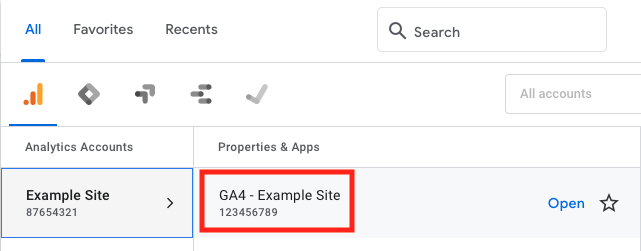
- Double check time zone and currency match your store
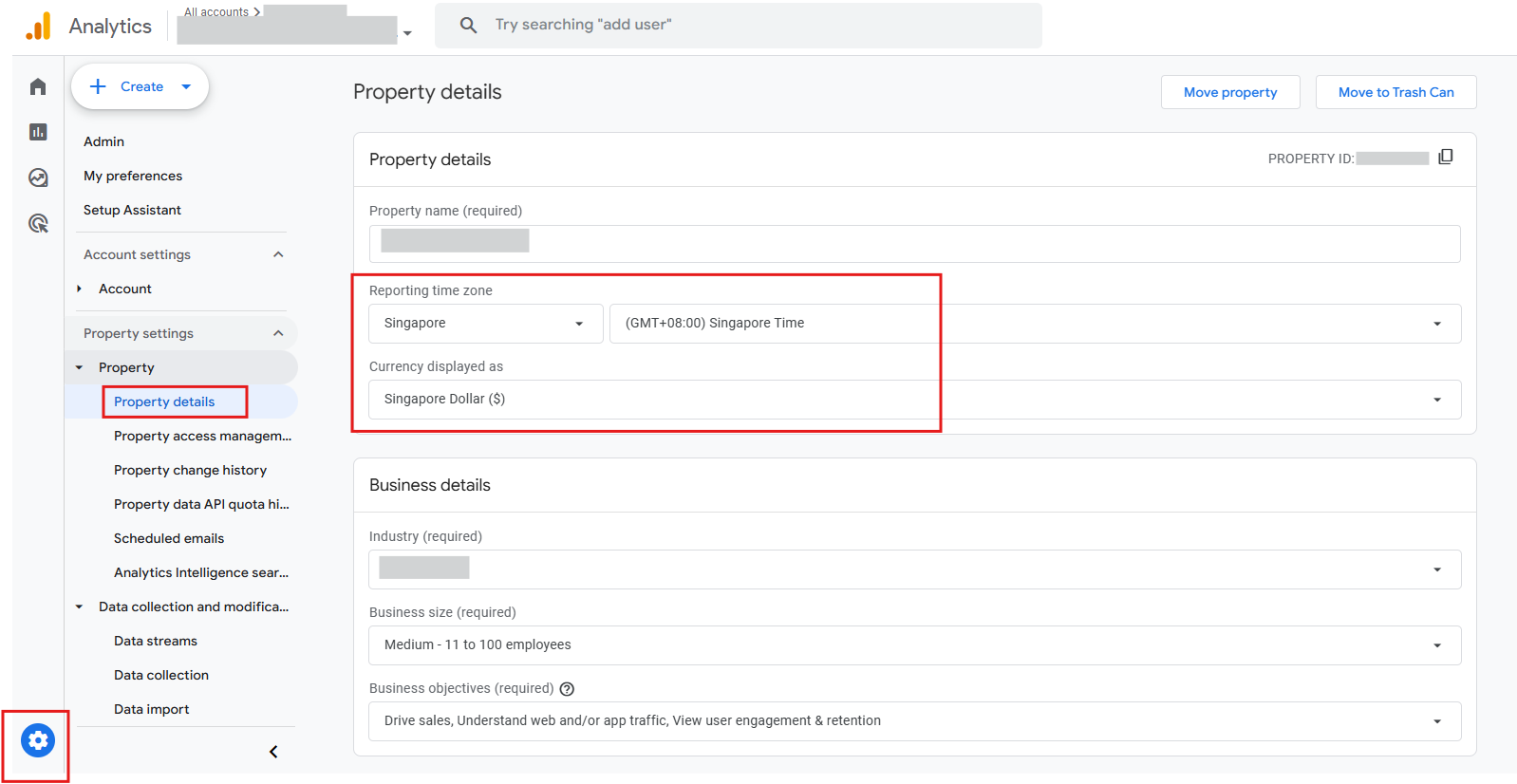
If you are setting it up:
- Use one GA4 property per site or brand
- Do not mix multiple unrelated sites into a single property, it makes analysis very messy
4.2. Make Sure Standard Ecommerce Events Exist
For ecommerce, the key GA4 events you care about are:
view_item_listandview_itemadd_to_cartbegin_checkoutadd_payment_info(optional but useful)purchase
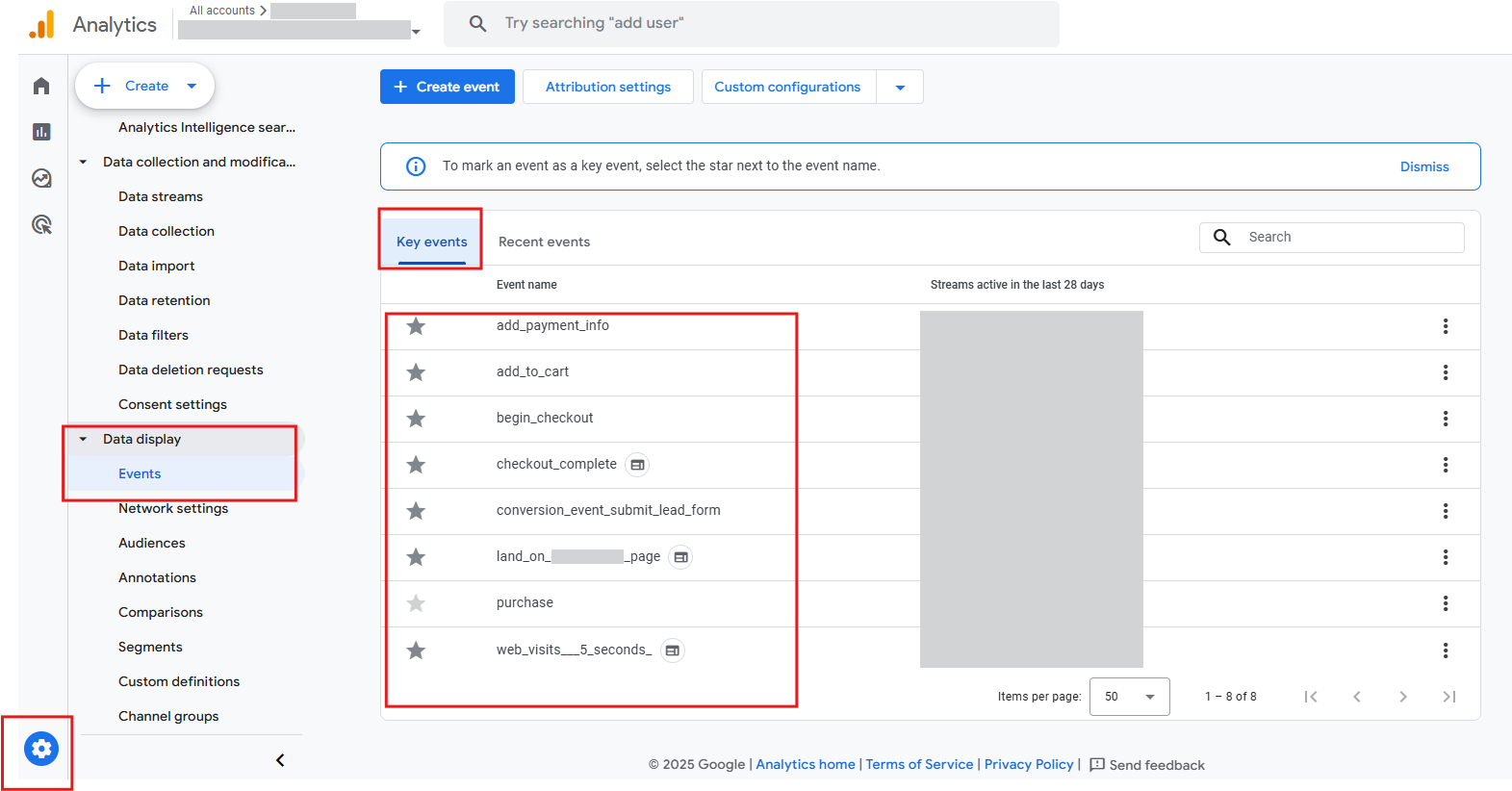
You want these events to:
- Fire at the right moment
- Include useful parameters like item ID, name, category, value and currency
Why it matters:
- You can see where people are dropping off
- You can tell if the issue is ad traffic quality, product appeal or checkout friction
4.3. Mark Key Events As Conversions
GA4 needs to know which events are meaningful.
For ecommerce, a simple starting setup is:
- Primary conversion
purchase
- Optional micro conversions
begin_checkoutadd_to_cart
Mark these as conversions so you can:
- Import them into Google Ads later
- Look at conversion rates for different funnel stages inside GA4
 Mike's Tip:
Note that GA4 and Shopify will usually have some discrepancy (about 5-10% is acceptable).
This is because of the way the data is tracked, with Shopify tracking server-side orders (more accurate for total revenue, including taxes/shipping), while GA4 tracks browser-side 'thank you' page views, which are easily blocked by ad blockers, slow connections, or payment gateways like PayPal, leading to missing purchases in GA4.
If there is a small discrepancy, it is acceptable but always treat your eCommerce store’s data (e.g. Shopify) as the main source of truth.
5. Step 3: Link GA4 And Google Ads
Now we connect the analytics brain to the ad engine.
5.1. Link The Accounts
From GA4, at a high level:
- Go to Admin
- Find the product links section
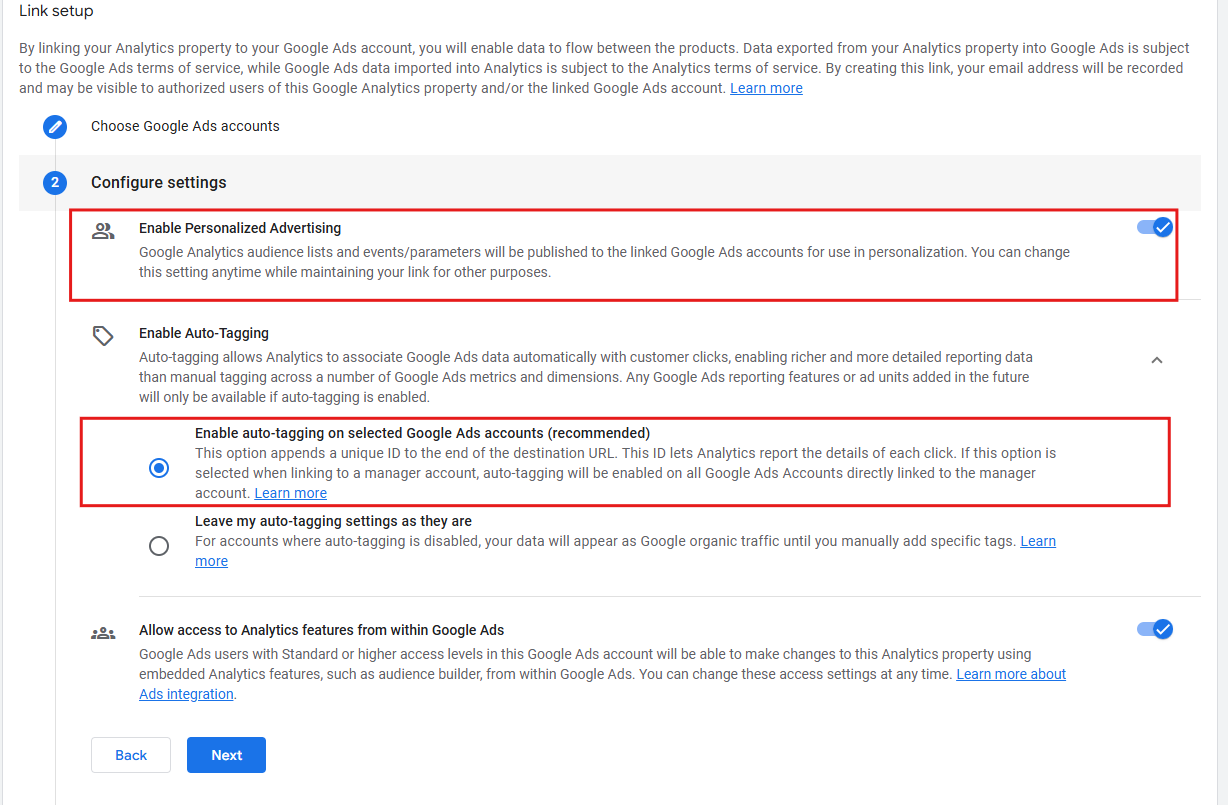
Create a link with your Google Ads account
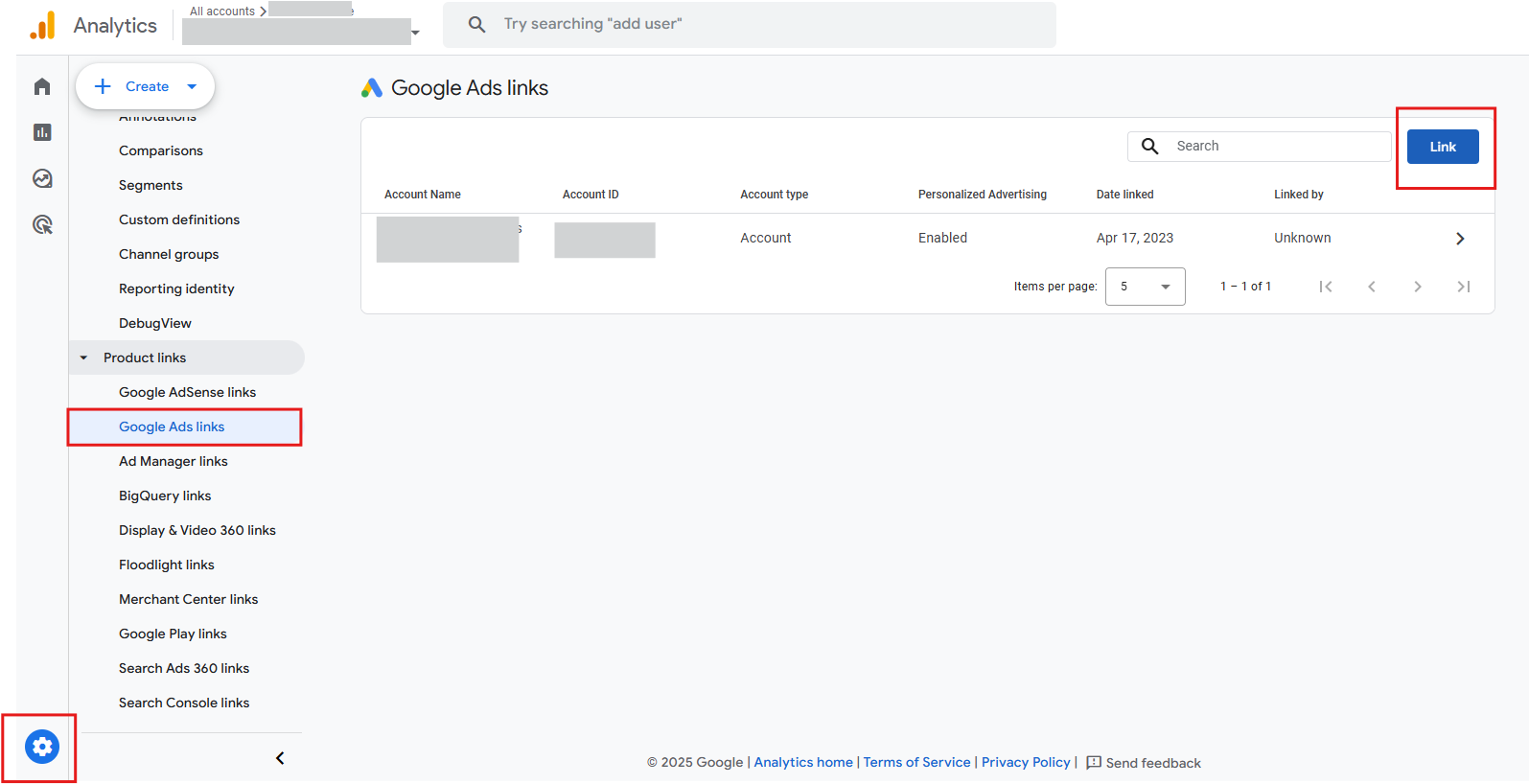
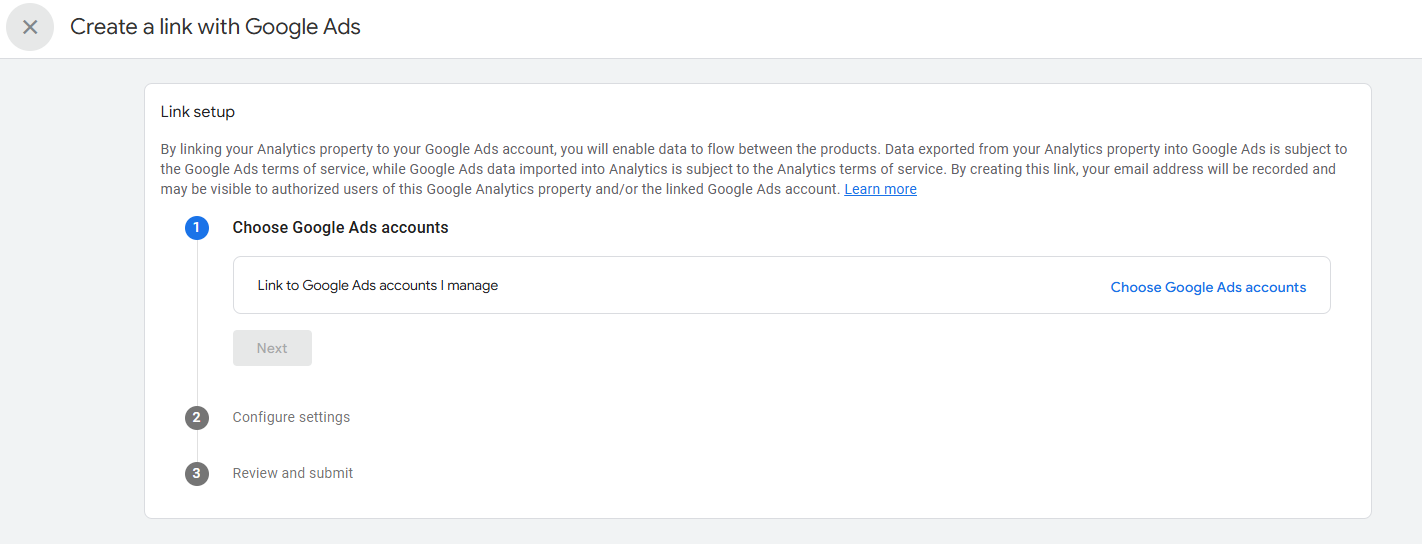
Make sure:
- You select the correct Google Ads account
- Auto tagging is enabled in Google Ads
- Data sharing settings allow GA4 to send conversions and audiences to Google Ads
5.2. Import GA4 Conversions Into Google Ads
Once accounts are linked, you can import GA4 conversions.
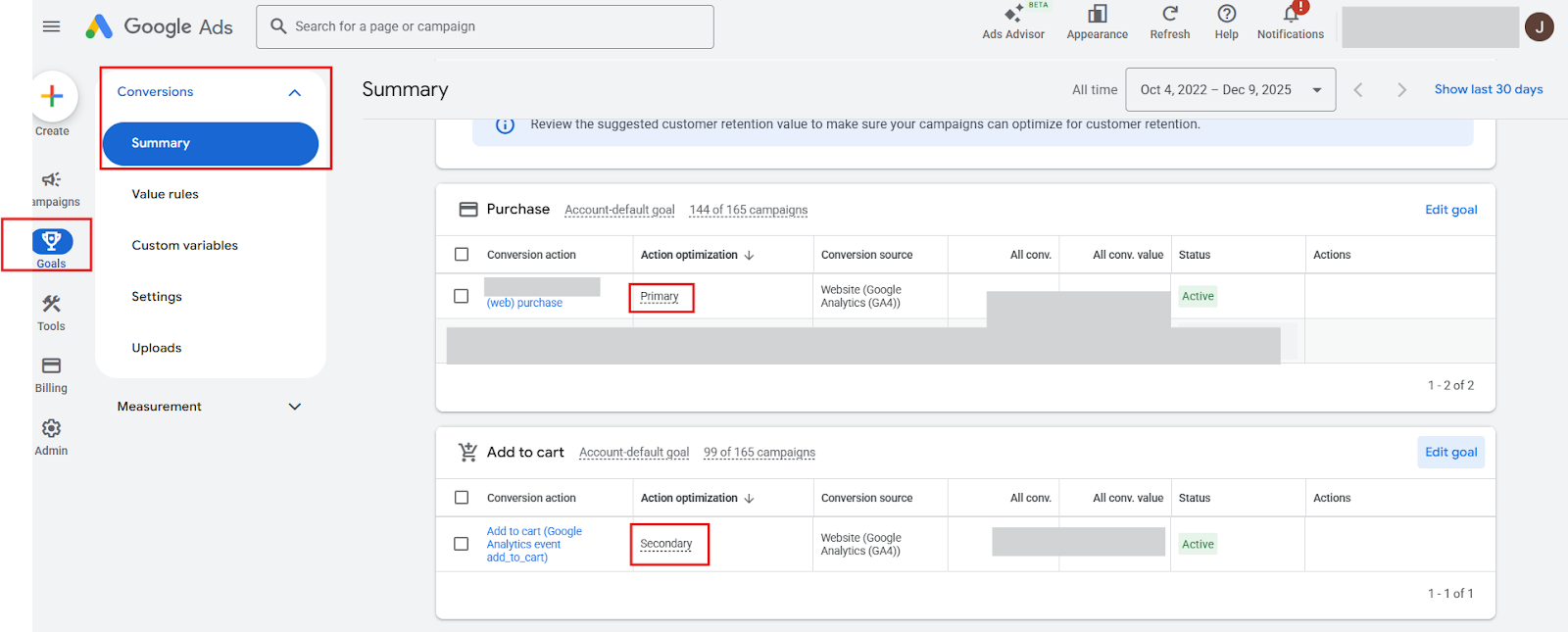
Good starting point:
- Import
purchaseas a primary conversion - Import
add_to_cartorbegin_checkoutas secondary conversions
Why this split:
- Primary conversions drive automated bidding and optimisation
- Secondary conversions are more for diagnosis and understanding the funnel
You normally do not want Google to optimise solely toward add to cart when your real goal is profitable purchase revenue.
5.3. Check Conversion Settings In Google Ads
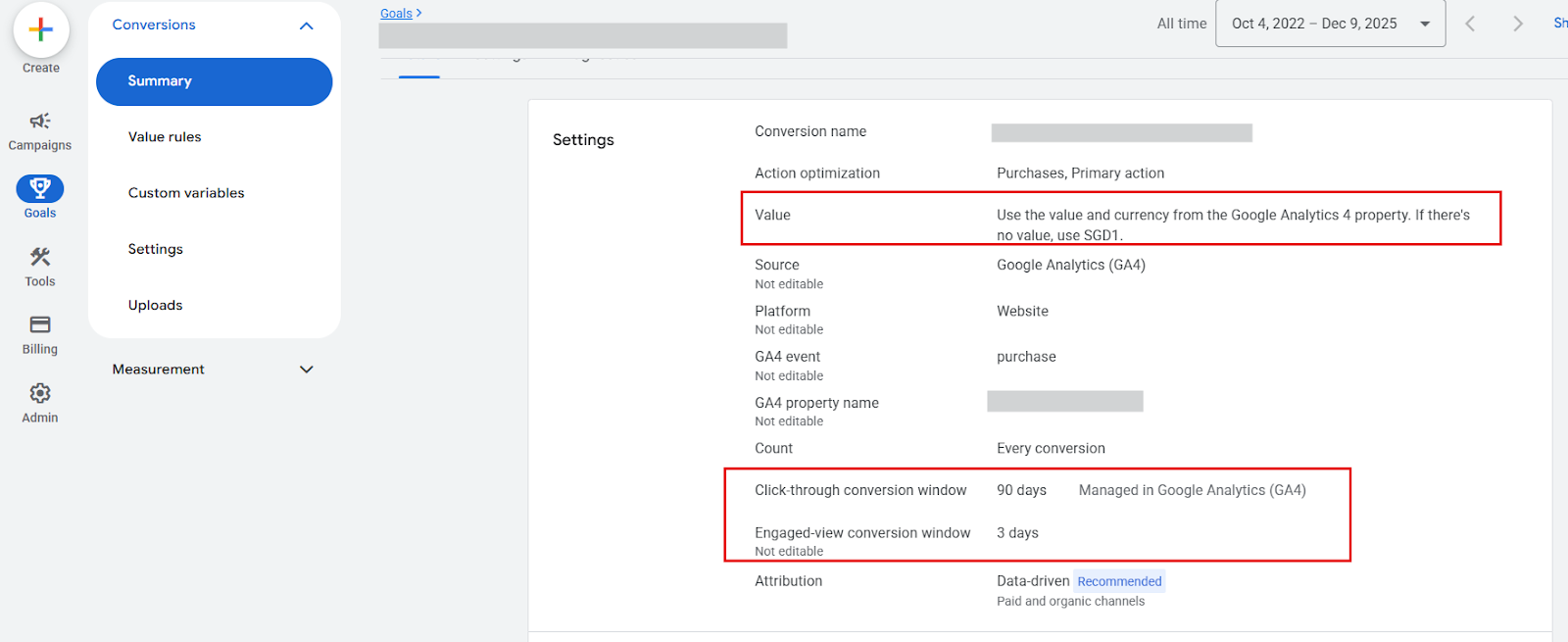
Inside Google Ads, for each imported conversion, check:
- Value
- Use the value from GA4
- Not a fixed amount like 1
- Use the value from GA4
- Count
- For purchases, "every" usually makes sense
- For leads or form submissions, sometimes "one" is better
- For purchases, "every" usually makes sense
- Conversion window
- Use your average customer life cycle from interaction to purchase if available
- For most ecommerce accounts, a 30 day click window is a solid default
Keep the setup simple at the start. You can refine later as you learn more about your buying cycle.
6. Step 4: Connect Your Product Feed And Merchant Center
If you are planning to use Shopping or Performance Max, product data is just as important as conversion data.
This product data lives in Google Merchant Center.
6.1. Set Up Merchant Center And Product Feed
The high level steps:
- Create a Google Merchant Center account
- Connect your store using
- A native app or integration, for example a Shopify app
- For Shopify: Go to your Shopify admin channel → Select "Channels’ → Add sale channels → select “Google”
- Click Connect Google Merchant Center
- Review and optimize your product data
- Upload your product feed to Google Merchant Center
- Review and submit your products for approval
- A plugin or feed file for WooCommerce or other platforms
- A native app or integration, for example a Shopify app
Important detail:
- Try to keep product IDs consistent across
- Your store
- Your feed
- Your tracking events
- Your store
This helps Google connect the dots between what people see in ads, what they view on the site and what actually sells.
6.2. Common Feed Problems That Affect Performance
Merchant Center issues can silently drag down Shopping and Performance Max.
Look out for:
- Large numbers of disapproved products
- Policy violations
- Missing or invalid GTIN
- Poor or non compliant images
- Policy violations
- Price or availability mismatch
- Feed price does not match the live site price
- Feed says in stock while the site says out of stock
- Feed price does not match the live site price
If half your catalog is disapproved or inaccurate, your performance and reporting will never look right, no matter how good your media buying is.
Mike's Tip:
A common policy violation faced is due to various shipping rates.
For example, if your product ships to different countries or has complex shipping calculations (for dimensions, weight, location). In Shopify, there has been a break where this shipping calculation breaks and product info syncs but not shipping rates. Hence, Google Ads will deem this a policy violation.
To fix this you may need to disable automatic shipping import in the Google Sales Channel (due to a break and configure shipping manually in GMC to mirror Shopify.
7. How To Sanity Check Your Data Before Turning Up Spend
The biggest mistake is to set tracking once and then never question it again.
You want a simple routine to check that numbers still make sense.
7.1. Weekly Cross Check Between Store, GA4 And Google Ads
Pick a recent complete day, for example yesterday, and compare:
- Total orders and revenue in your store
- Purchase count and revenue in GA4
- Conversions and conversion value in Google Ads
You are not aiming for perfect one to one matching. Different platforms count slightly differently.
You are looking for:
- Similar patterns and direction
- No wild gaps such as Google Ads showing three times more purchases than your store
7.2. Red Flags That Your Tracking Is Lying
Pay attention to these signals:
- Google Ads shows way more conversions than your store
- Often a sign of duplicate events
- Or the wrong event imported as purchase
- Remember, GA4 may have some discrepancy with your online store (e.g. Shopify) but it should not be major (i.e not more than 5-10%)
- Often a sign of duplicate events
- Conversion rate looks unrealistically high
- For example, an unbranded search campaign with 30 or 40 percent conversion rate
- Usually a tracking problem, not magic targeting
- For example, an unbranded search campaign with 30 or 40 percent conversion rate
- All campaigns suddenly drop to zero conversions overnight
- Very rarely explained by "the market changed"
- Much more likely a tag broke or a GA4 to Google Ads import was switched off
- Very rarely explained by "the market changed"
Any time the numbers feel too good or too bad to be true, check tracking first, creative and bids second.
8. Putting It All Together Before You Spend
Here is the sequence to keep in mind before you spend real money on Google Ads:
- Clean your source of truth
Make sure your store records and fires purchase events correctly - Set up GA4 to understand ecommerce
Standard events, correct currency, key events marked as conversions - Link GA4 to Google Ads and import the right conversions
Purchase as primary, micro conversions as secondary - Connect and clean your product feed in Merchant Center
So Shopping and Performance Max can actually work - Do regular sanity checks
Store versus GA4 versus Google Ads
Once you have this in place, you are no longer guessing.
Every dollar you spend is now feeding reliable data back into the system, and every decision you make on bids, budgets and structure is based on something closer to reality, not vibes.
Only then is it worth running Google Ads and scaling your budget.