Step 1: Confirm the connection
- Merchant Center is linked to Google Ads (See section 2 on “Shared Foundations” if you missed it)
- No major policy issues or feed errors (See section 2 on “Shared Foundations” if you missed it)
-01.png)


You have an ecommerce brand or client, a real budget, and a brand new Google Ads account staring back at you, with no idea how to start without burning through your spend.
This guide is your safety net. It is designed for marketers who need a clear way to set things up from scratch with no experience.
You will learn:
Which channels actually matter for ecommerce
How to structure the account so it is readable and fixable later
A practical, step by step way to set up Search, Shopping and Performance Max safely
Think of it as an “ad clinic” for new Google Ads accounts: we are getting the foundations clean before we do anything clever.
Before touching buttons, you need to see how the main pieces fit together. For ecommerce, most of your performance will come from four workhorses.
Shopping ads are those product cards with image, price and merchant name.
.png)
They use your product feed in the Merchant Center, not manual keywords. Google shows different products to the users based on what they think is relevant to the user’s search. That means:
Shopping is how you show the exact product at the exact moment a user is comparing options.
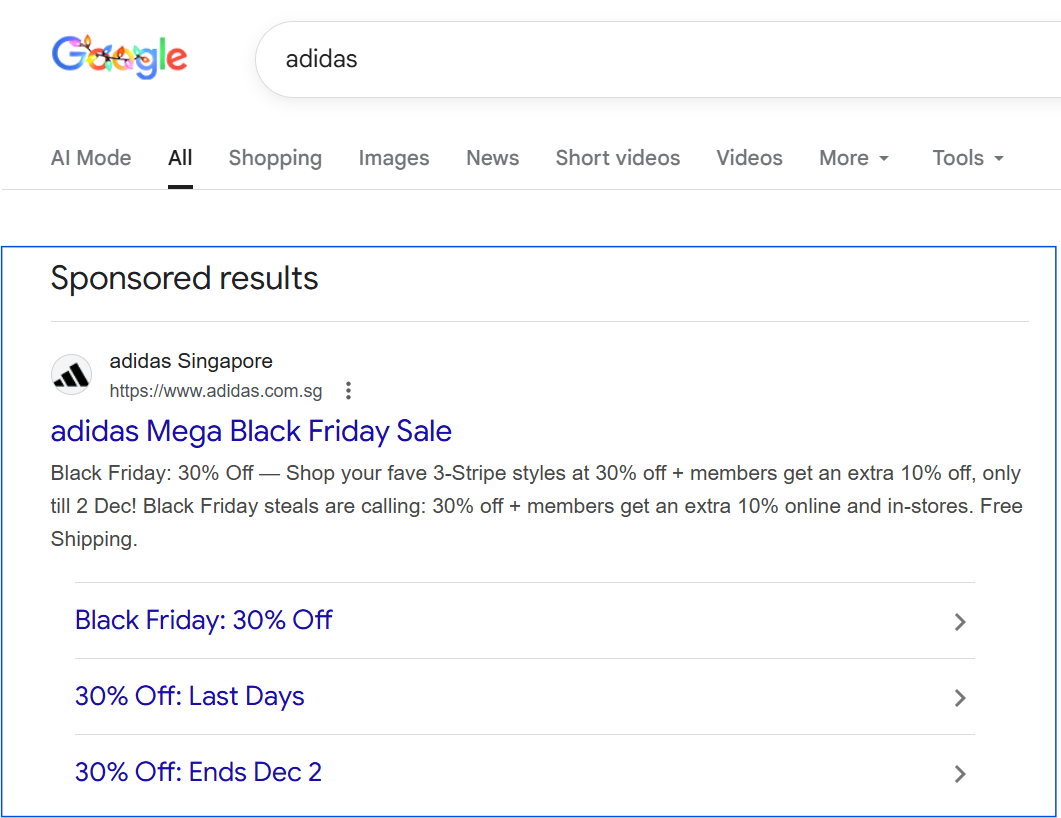
Branded searches are searches on Google that include the brand name or specific names of the products.
.png)
Brand Search is your “defence line” on the results page. If your market is very competitive (meaning lots of other competitors are also advertising), you would want a dedicated campaign that protects this traffic and lets you control the message and landing page.
If however you have a small ad budget and your brand is already ranking high organically, skip the branded search since users searching for your brand are likely to convert even without you spending money on them.
.png)
These are generic product types, category or problem based searches.
Non-brand campaigns are your “new customer engine” because they target users who are interested in the products you are selling but are brand agnostic and still in the research stage, open to purchasing from different brands. They need more control and tighter structure than branded search campaigns.
Performance Max uses your feed and assets to run across Search, Shopping, YouTube, Display and more.
.png)
It can be powerful, but for someone new, it can feel like “data fog”: lots of spend, unclear on what exactly is working and little control over how your assets are shown.
For most ecommerce accounts, a safe order of operations is:
| 1 | Standard Shopping |
| 2 | Brand Search (if your market is competitive) |
| 3 | Non Branded Search for top categories |
| 4 | Performance Max after the basics are clean |
If any of these following pieces are wrong, every channel will lie to you. This is the unsexy part that quietly decides whether your account is built on solid rock and will scale beautifully, or is built on sinking sand that will come crumbling down the more you build on it.
.png)
If this is off, your optimisation and reporting will both be fiction.
For Shopping and PMax, the feed is your targeting.
You need:
.png)
.png)
These labels become your “handles” later for Shopping and Performance Max (PMax) structure.
You do not need advanced audience strategies, but you should have:
These become audience signals for PMax and Search, nudging Google toward the right people faster.
Structure is how you prevent “data soup”. When everything is lumped together, you cannot tell what is actually working.
Pick a naming pattern and stick to it.
When you open the account in three months, you should understand the strategy just from the names.
Start simple:
You can clone and separate campaigns later for high priority categories, but starting too fragmented makes it hard to get enough data to learn anything.
The rule: one clear idea per ad group. This not only helps you craft your ads to tie tightly with the user’s search intent, but also gives you clean data and easier optimisation later.
For a new account, a good starter setup is:
You can always split later by category or margin once you see where the wins are.
Once the feed and Merchant Center are ready, Shopping lets you show real products instead of just headlines.
.png)
There are two initial options:
| Option 1 | A recommended starting point is $20–$50 per day per campaign, depending on the size of the account and the number of products in the feed. If the account has a large product catalog, you can consider starting with $100–$150 per day, especially for high-priority or high-margin product categories. |
| Option 2 | Start with 10x the average daily cost per sale for your products. For example, if you are selling shoes at $100 per pair, and you expect an average cost per conversion of $10, start with a daily budget of $100 to $200. |
.png)
Check the keyword planner to have a sense on how much your product-related keywords are currently costing. You can use the upper limit as a guide for your bid cap.
.png)
.png)
By default, everything goes into “All products”. That is a recipe for confusion.
Instead:
For each product group:
Even though Shopping is feed driven, you still get a search terms report (Under Campaigns > Insights and reports > Search Terms).
Use it to:
.png)
This is one of the few levers you have to keep Shopping from drifting into low quality traffic.
.png)
Check the keyword planner to have a sense on how much your brand-related keywords are currently costing. You can use the upper limit as a guide for your bid cap.
.png)
.png)
Focus on brand variations in Phrase and Exact match to prevent overlaps with your unbranded search campaign:
.png)
If you didn’t already know, square brackets tell google that is an exact match keyword. Inverted commas tell google that is a phrase match keyword. Learn more on keyword match types here.
.png)
For example, for the keyword “adidas” in Singapore, there are a total of 60,500 monthly searches costing SGD1.72 for the top of page range. The maximum budget that this keyword could potentially cost each month will be around 60,500 x $1.72= $104,060.
After publishing the campaign, add negatives keywords for:
Be sure to use either exact match or phrase match for negative keywords.
.png)
Brand search now becomes your “control point” for brand traffic instead of leaving it to organic results and competitors. Remember, if your market is not very competitive, you have a small ad budget and are already ranking high organically, skip the branded search since users searching for your brand are likely to convert even without you spending money on them.
For example, if you are Adidas, you can create one campaign for shoes, one campaign for clothing, one campaign for bags. (You can further segment each product category into different product types later on at the keyword/ adgroup level)
Check the keyword planner to have a sense on how much your product-related keywords are currently costing. You can use the upper limit as a guide for your bid cap.
Each ad group gets one tight theme
For each ad group:
Use extensions to help improve the attractiveness and click through rates of your Search Ads. The most common and impactful extension to implement is sitelink extensions. Sitelinks to key categories or top sellers help users to navigate to specific pages on your site (for example, a specific product or store hours)
.png)
.png)
Other useful extensions to include for your Search ads include:
When you look back at this campaign later, it should be obvious which theme or intent is working.
Performance Max can feel like magic or mayhem depending on how you set it up.
Good signals you are ready:
Purchase tracking and revenue are accurate
Merchant Center is clean and approved
Search and Shopping are already live and not a total mess
You have at least some basic creative assets
If those points are shaky, fix them first before setting up a Performance Max campaign because Performance Max relies heavily on automated optimisation (very little room for manual tweaks from you) and hence needs a significant amount of clean data.
.png)
This helps to ensure that brand search is being captured separately by brand search campaigns and not Pmax, so that you can optimise Pmax towards reaching new customers.
Create asset groups by theme or category, not by random mixes.
For each asset group:
| Final URL | for a relevant category or collection page |
| Headlines | Product focused Benefit focused Offer focused |
| Descriptions | Why buy from this brand |
| Images | Clean product images and at least one lifestyle shot if available |
| Logos and videos | if you have them |
Think of each asset group as a mini “brand ad” for that category inside the PMax system.
Audience signals give PMax an idea of who they should target. They aren’t exactly what Google will use, but rather as a starting point of how they’ll go about targeting.
Add:
.png)
These are hints, not hard filters, but they help PMax start smarter.
This is where you choose which products PMax can use.
.png)
This is how you put guardrails around what PMax is allowed to push.
Here is a simple “Safe Launch Sequence” you can follow for almost any ecommerce client.
This sequence keeps you out of panic mode and gives you clean data for the follow up piece on optimisation and scaling.
Here’s a checklist before you go-live: